

2024-2025 Tesla Model 3 'Highland' USB Port: Diagnosis, Replacement, and Programming
This guide covers the common failures, diagnosis, and critical software requirements for replacing the USB port module in the updated Tesla Model 3 'Highland'.
- A replacement USB module is NOT plug-and-play; it requires software calibration with Tesla's proprietary "Toolbox" software to function.
- Most Sentry Mode/Dashcam errors are caused by the USB drive (formatting, wear, speed), not the port itself.
- Only the USB-A port in the glovebox supports Sentry Mode and Dashcam recording; other ports are for charging and media.
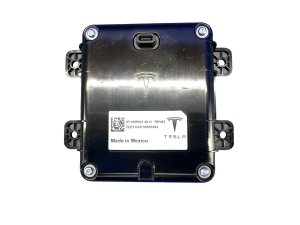
- When buying a used module, verify part number 18555541-00-D and budget for professional installation and programming.
Critical Programming Information

Warning: This is not a plug-and-play part. Replacing the USB hub module in a 2024-2025 Model 3 requires a software calibration procedure using Tesla's proprietary "Toolbox" diagnostic software. After physical installation, a routine must be run to make the vehicle recognize and properly operate the new module. Failure to perform this step will likely result in the port not functioning correctly. This procedure typically requires a visit to a Tesla Service Center or an independent repair shop with access to Tesla's diagnostic tools.
Symptoms of Failure

Many suspected USB port failures are actually issues with the connected USB drive. Before assuming the port is bad, it's crucial to rule out these more common problems. True hardware failure is less common but can occur.
- No Power or Charging: A connected device, like a smartphone, does not charge or show any indication of being connected.
- Sentry Mode or Dashcam Unavailable: The car displays an error message, or the Dashcam icon does not appear on the screen, even with a USB drive inserted in the glovebox port. This is often accompanied by messages like "USB device not supported" or "USB drive is not accessible".
- Intermittent Connection: A connected device repeatedly connects and disconnects. This can affect both charging and data transfer.
- Multiple Devices Fail: The port fails to recognize several different known-good USB drives and charging cables that work elsewhere.
- Physical Damage: The connector inside the port is visibly bent, broken, or corroded.
Pro Tip: Before blaming the port, always try rebooting the car's infotainment system by holding down both scroll wheels on the steering wheel for about 15 seconds until the Tesla logo appears. This simple step resolves many software-related USB glitches.
Step-by-Step Diagnosis

Follow these steps to determine if the USB port itself has failed or if the issue lies elsewhere.
- Check the USB Drive: The vast majority of Sentry Mode and Dashcam issues are caused by the USB drive. Drives used for constant recording wear out quickly.
- Remove the drive and test it on a computer. Check its health using a free tool like CrystalDiskInfo (Windows) or Disk Utility (Mac).
- Ensure the drive is formatted as exFAT and has a folder named exactly
TeslaCamat the root level. - Try a brand new, high-endurance USB drive with a sustained write speed of at least 4 MB/s.
- Isolate the Port: Test the suspect port with a simple phone charging cable and a phone you know works. If it provides power, the port's basic function is likely okay, and the problem is data-related.
- Check Other Ports: Test your USB drive and/or phone in all the USB ports in the vehicle to see if the problem is isolated to a single port. Remember, only the glovebox port works for Sentry Mode.
- Check for Software Updates: Occasionally, a Tesla software update can introduce bugs affecting USB functionality. Check online forums to see if other owners are reporting similar issues after a recent update.
- Inspect for Harness Damage: In some cases, especially after other dash-related repairs, the USB wiring harness can be left disconnected or damaged. If you're comfortable removing trim panels, you can visually inspect the connection at the back of the module.
Buying a Used USB Port

A used OEM USB port module is often the only cost-effective option, as direct aftermarket replacements are generally not available. Here’s what to look for:
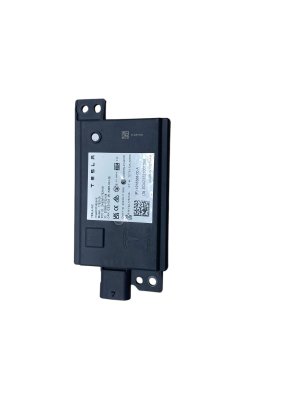
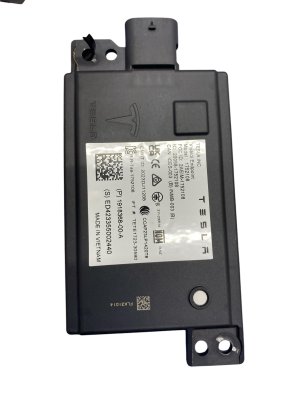
- Verify the Part Number: Ensure the part number matches your vehicle's original module. The most common number for the front hub in the 'Highland' Model 3 is 18555541-00-D. Using the wrong module may lead to incompatibility.
- Physical Inspection: Carefully inspect the electrical connector pins for any signs of corrosion, bending, or damage. Check the USB ports themselves for any debris or physical damage to the internal contacts.
- Source from a Reputable Recycler: Purchase from a seller that offers a warranty and has good reviews. This provides protection if you receive a dead-on-arrival part.
- Budget for Programming: This is the most important factor. Remember that you will incur additional costs for a Tesla Service Center or specialist shop to perform the software routine required to make the part work with your car. Factor this into the total cost of the repair.
Known Issues, TSBs, and Recalls
As of late 2025, there are no specific recalls or Technical Service Bulletins (TSBs) issued by Tesla or NHTSA for the USB port modules on the 2024-2025 Model 3. However, several other recalls exist for these model years:
- NHTSA Recall 25V-002: Affects 2024-2025 Model 3s for a potential loss of the rearview camera image due to a shorting computer circuit board. This is an electrical system issue but is not directly related to the user-facing USB ports.
- Battery Contactor Recall: Some 2025 Model 3s were recalled for a faulty battery pack contactor that could cause a loss of drive power. This is unrelated to the USB system.
Replacement Overview
Replacing the front center console USB hub is a moderately difficult task that requires careful removal of interior trim. 🎬 Watch: How to remove the Tesla Model 3 center console According to Tesla's service manual, the process involves maneuvering the center console assembly to gain access to the hub. The hub is typically secured with a few Torx screws.
DIY Warning: While the physical swap may be feasible for an experienced DIY mechanic, the final software calibration step makes this a difficult DIY repair. Without access to Tesla's "Toolbox" software, the replacement part may not function.
Cost Breakdown
Prices can vary based on location and availability. The main cost consideration is the mandatory software programming.
| Part Source/Service | Estimated Cost |
|---|---|
| New OEM | $250 - $400 (estimated, part only) |
| New Aftermarket | Not Available |
| Used OEM | $100 - $340 |
| Shop Labor (Physical Install) | $100 - $175 |
| Shop Labor (Programming) | $100 - $250 (estimate, may be a fixed 1-hour diagnostic fee) |
Frequently Asked Questions (FAQ)
Do I have to get my new USB port programmed by Tesla?
Yes, evidence from Tesla's own service documentation indicates that a software routine using their proprietary "Toolbox" software is required after installation. A simple swap will likely not work, so you should plan for a visit to a Tesla Service Center or a qualified independent shop.
Will replacing the USB port fix my Sentry Mode problems?
Not necessarily. Most Sentry Mode and Dashcam issues are caused by a worn-out, slow, or improperly formatted USB drive. Before replacing the port, always try a new, high-quality USB drive formatted to exFAT with a "TeslaCam" folder. If that fails, then you can investigate the port itself.
Can I install a used USB port myself?
While you can physically install the part if you are comfortable removing the center console trim, you will still need a professional to perform the final software calibration step. Given this requirement, it may be more efficient to have a qualified shop handle the entire process.
Are all the USB ports in the Model 3 the same?
No. The port in the glovebox is a USB-A port and is the only one that supports data for Sentry Mode and Dashcam. The USB-C ports in the center console and for the rear passengers are primarily for charging and media playback. A failure of a center console port will not affect Sentry Mode recording.
Helpful Videos
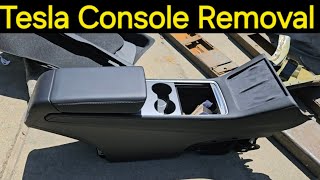
Technical Specifications
OEM Part Numbers: 18555541-00-D
Ports: USB-A (Glovebox, Data/Power), USB-C (Center Console, Power/Media). Power Output: Approx. 15W.
We Have This Part in Stock
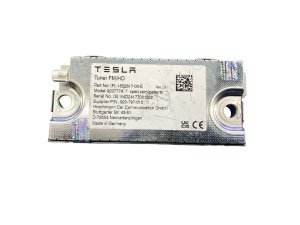
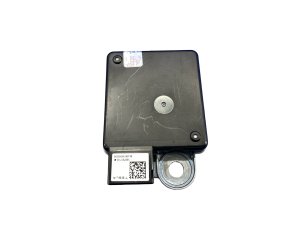
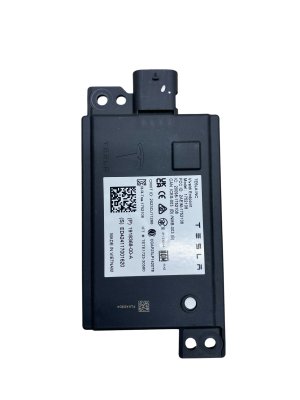

The information in this article is provided for general reference and educational purposes only. Vehicle specifications, procedures, and part compatibility can vary by production date, trim level, and region. Always consult your vehicle's factory service manual and verify part numbers before purchasing or performing repairs. Safety-critical components such as airbags, seat belts, and braking systems should be installed by a qualified professional.
- Tesla 3: