

2021-2026 Dodge Durango USB Port: Fixing Charging and CarPlay Issues
This guide covers common problems, diagnosis, and replacement of the USB media port in 2021-2026 Dodge Durango models, focusing on charging and data connectivity failures.
- Many 'bad port' symptoms are actually Uconnect software glitches that can be fixed with a system reset or a software update.
- The most reliable replacement is a used OEM part, specifically the updated part number 68473947AB, which supersedes 68473947AA.
- Failures often present as intermittent CarPlay/Android Auto connections before total failure.
- Before replacement, always test with a different cable and check for a loose connector behind the console trim, a common issue.
Common Failure Symptoms

When the USB port in a 2021-2026 Dodge Durango begins to fail, it can cause a range of frustrating issues. Because the port handles both power and data, symptoms can appear in several ways. Many owners report that the first sign of a problem is an intermittent connection with Apple CarPlay or Android Auto. Other common symptoms are directly related to the physical port or the vehicle's software.
- No Charging or Slow Charging: The most obvious symptom is a device not charging when plugged in. Sometimes, the port may provide a very slow charge that can't keep up with the phone's power usage.
- Intermittent Apple CarPlay/Android Auto: The connection may frequently drop and reconnect, making navigation and media playback unreliable. This is often caused by a loose internal connection or worn contacts.
- "Device Not Supported" Message: The Uconnect screen may display an error message, even when using a compatible phone and cable.
- No Data Connection: The phone may charge, but the vehicle will not recognize it for data transfer, preventing the use of CarPlay or Android Auto.
- Loose Physical Port: The internal components of the USB port can become worn or damaged from repeated use, causing cables to fit loosely. Wiggling the cable might cause the connection to work temporarily.
- Port Not Illuminated: A key diagnostic clue is if the ambient lighting around the USB port is off. This often indicates the port is not receiving power and may have a disconnected plug behind the console panel.
Pro Tip: Before assuming the port is bad, always test with a different, high-quality USB cable and another device to rule out a faulty cable or phone. Also, try resetting the Uconnect system by holding the power button down 🎬 See this guide for troubleshooting wireless CarPlay connection issues for 15-20 seconds; this can resolve temporary software glitches that mimic a hardware failure.
Buying a Used 2021-2026 Durango USB Port

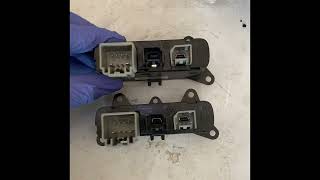
Since the USB port is an electronic component with no moving parts, a used OEM part is an excellent, cost-effective alternative to an expensive new one. Aftermarket options for this specific integrated part are rare and often low-quality, making a recycled OEM unit the best choice for reliability and perfect fitment.
What to Inspect
- Check the Pins: Look inside the USB port itself. The contact pins should be straight, uniform, and free of any corrosion, dirt, or green residue. Bent or damaged pins are the most common reason for failure.
- Test for Snugness: If possible, plug a USB cable into the port. It should feel snug and secure, not loose or wobbly. A loose fit indicates internal wear.
- Inspect the Connector: Examine the electrical connector on the back of the unit. Ensure the plastic is not cracked and the pins are not bent or pushed in.
- Part Number Verification: The primary OEM part number for this generation Durango is 68473947AB. This part supersedes the earlier version, 68473947AA. When buying used, try to find the 'AB' revision, as it is the most current version and may contain internal improvements.
Known Issues, TSBs, and Recalls

As of early 2026, there are no specific recalls for the USB port itself on the 2021-2026 Dodge Durango. However, several issues and Technical Service Bulletins (TSBs) related to the Uconnect system can cause symptoms that appear to be a faulty USB port.
- TSB S2208000068: Released in March 2022 for 2019+ models, this TSB addresses a "Device Not Supported" message appearing on the radio screen. This is a software issue, not a hardware failure of the port.
- TSB S1708000118: This bulletin notes a potential battery drain concern related to the dual USB port's normal operational draw or extended illumination after the vehicle is turned off.
- Uconnect Software Updates: Many connectivity issues are resolved with radio software updates. FCA has issued multiple updates to fix bugs related to black screens, Wi-Fi hotspot failures, and general performance, which can affect USB functionality. Before replacing the port, check with a dealer or online for any available Uconnect updates for your vehicle.
- Loose Connector from Factory: Some owners have reported that the USB ports were not working from the time they took delivery of the vehicle. The cause was often found to be an electrical connector that was not fully seated at the factory behind the console trim.
Cost Comparison
| Part Type | Price Range |
|---|---|
| New OEM (Mopar) | $90 - $135 |
| New Aftermarket | Not Generally Available |
| Used OEM | $35 - $75 |
| Shop Labor Cost | $100 - $200 |
Replacement Overview

Replacing the USB port in a 2021-2026 Durango is a straightforward task for a DIYer with basic tools. The process involves carefully removing trim pieces 🎬 Watch: How to safely remove the 2021+ Durango dash trim to access the port module.
- Difficulty: 2 out of 5
- Estimated Time: 0.5 - 1 hour
- Tools Needed: Plastic trim removal tools, small screwdriver or pick.
The general process involves prying away the center console trim surrounding the shifter and storage cubby 🎬 Watch: A quick guide to all Durango USB port locations where the USB port is located. Using plastic tools is essential to avoid scratching the dashboard. Once the trim is loose, the USB module can be seen. It is typically held in by clips and has a single electrical connector on the back. Disconnect the wiring, release the clips, and swap in the new unit before reassembling the trim.
Warning: Always disconnect the vehicle's battery before working on electrical components to prevent short circuits or electrical shock.
Frequently Asked Questions
Why do my USB ports charge my phone but not connect to Apple CarPlay/Android Auto?
This common issue happens because charging only requires the power pins in the USB port, while data transfer for CarPlay/Android Auto requires the data pins. The data pins or the associated wiring can be damaged while the power pins remain functional. This can also be caused by a low-quality or damaged USB cable that is not certified for high-speed data transfer.
Is the USB port in my 2021-2026 Durango covered under warranty?
Yes, the USB port is covered under the vehicle's original bumper-to-bumper factory warranty, which is typically 3 years or 36,000 miles for Dodge vehicles. If your vehicle is within this period, a dealer should diagnose and repair the issue free of charge.
My USB ports stopped working suddenly. What should I check first?
First, check the fuse. The USB ports share a fuse with other accessories, and a blown fuse will disable them completely. The fuse box location and diagram can be found in your owner's manual. If the fuse is fine, try resetting the Uconnect system. If neither of those work, the issue may be a loose connector behind the port or a failed port.
Can I upgrade the USB-A ports in my Durango to USB-C?
A direct swap is not possible with a simple OEM part, as the physical housing and vehicle wiring are designed for the specific module that came with the vehicle. While some owners in forums discuss custom wiring aftermarket ports, it is a complex job that can cause electrical issues if not done correctly. It is not a recommended modification for most users.
Helpful Videos
Technical Specifications
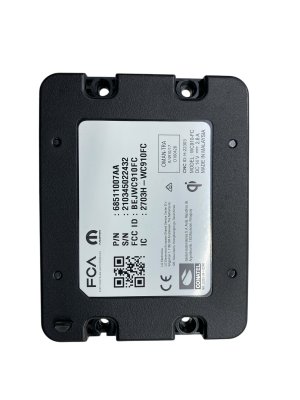
OEM Part Numbers: 68473947AB 68473947AA
Dual USB Media Hub for Uconnect System
We Have This Part in Stock

The information in this article is provided for general reference and educational purposes only. Vehicle specifications, procedures, and part compatibility can vary by production date, trim level, and region. Always consult your vehicle's factory service manual and verify part numbers before purchasing or performing repairs. Safety-critical components such as airbags, seat belts, and braking systems should be installed by a qualified professional.
- Dodge Durango: