

2016-2023 GM Truck & SUV USB Port Failure: Why CarPlay & Android Auto Disconnect
If your phone constantly disconnects from Apple CarPlay or Android Auto, the problem is likely this common, easy-to-fix USB data port.
- The most common symptom of failure is intermittent Apple CarPlay/Android Auto connection, often triggered by wiggling the cable.
- Before replacing the port, always test with a different, high-quality USB cable and clean the port, as these are common and simple fixes.
- Replacement is extremely easy (1/5 difficulty) and requires only a plastic trim tool, making it an ideal DIY repair.
- Always buy an OEM part (new or used). Aftermarket versions are not common and may not support the data protocols required for CarPlay/Android Auto.
Symptoms of a Failing GM USB Port

A failing USB port in these GM vehicles often causes frustrating and intermittent issues. Because the port handles both charging and data, you might notice problems with one function but not the other. The most common sign of failure is the internal data connection wearing out, while the charging connection may still work.
- Intermittent Apple CarPlay or Android Auto: The most frequent complaint is the system disconnecting and reconnecting randomly. Often, simply touching or wiggling the phone or cable will cause the connection to drop, immediately pointing to a worn-out physical port.
- Device Not Recognized: The infotainment screen may display an error message like "Device not found" or fail to acknowledge that a phone or USB drive has been plugged in at all.
- Failure to Charge or Slow Charging: The port may stop providing power to your device entirely, or only provide a slow, insufficient charge. In some cases, the phone may indicate it's charging, but the battery level continues to drop during CarPlay use.
- One Port Works, The Other Doesn't: In the dual-port module, it's common for one of the USB ports to fail while the other continues to function normally, at least for a while.
Known Issues, TSBs, and Recalls

This is a widely recognized failure point on many GM trucks and SUVs. While there are no official recalls for this specific issue, General Motors has released several Technical Service Bulletins (TSBs) acknowledging the problem and providing diagnostic guidance to technicians.
Technical Service Bulletin 22-NA-238
This bulletin, released for 2020-2023 models, directly addresses complaints of a USB port being inoperative for charging or data transfer. It identifies the cause as a potentially faulty USB Hub. The prescribed diagnostic steps include:
- Inspecting the owner's USB cable for damage.
- Using a USB meter to verify voltage at the port (a good port should read between 4.40 and 5.25 volts).
- Checking for blown fuses.
- If power is present but data transfer (like playing music from the phone, not via CarPlay) fails, the bulletin advises replacing the USB receptacle.
Technical Service Bulletin 16-NA-242
An earlier version of the TSB for 2016-2017 models provides similar advice, pointing to a faulty USB hub as the likely cause of inoperative ports and recommending replacement if basic diagnostics fail.
Infotainment Software Glitches
In some cases, connectivity issues that seem like a hardware problem can be caused by software glitches. TSB 20-NA-199 was released to fix various software anomalies in the infotainment system, including problems with Bluetooth and phone projection (Apple CarPlay/Android Auto). Before replacing hardware, it's worth checking if your vehicle has any pending infotainment software updates.
🎬 Watch: Troubleshooting Apple CarPlay and GMC connectivity issuesStep-by-Step Diagnosis

Before you buy a new part, follow these steps to make sure the USB port is actually the problem. The issue is often something much simpler.
- Test a Different Cable: This is the #1 cause of connectivity problems. Use a high-quality, certified cable (preferably the one that came with your phone). Many cheaper aftermarket cables are designed for charging only and lack the necessary wires for data transfer.
- Clean the Port: Debris like dust, lint, or crumbs can block the electrical contacts. Use a can of compressed air or a non-metallic tool like a wooden toothpick to gently clean out both the vehicle's USB port and your phone's charging port.
- Restart Everything: A simple reboot can often clear software glitches. Turn the vehicle off, open and close the driver's door to ensure the infotainment system fully powers down, and restart your phone.
- Check the Fuses: A blown fuse will cause the port to lose all power. Fuse locations vary by model, but they are typically in one of three fuse boxes: in the engine bay, on the side of the dashboard (accessible with the passenger door open), or in the rear cargo area. Consult your owner's manual for the specific fuse labeled 'USB,' 'Auxiliary Power,' or for the radio itself.
If none of these steps solve the problem, and especially if wiggling the cable causes the connection to drop, the USB port module itself has likely failed internally and needs to be replaced.
Pro Tip: Spilling liquid into the USB port is a common way to damage it. If you know a spill has occurred, it's almost certain the port's internal electronics are shorted out and the module will need to be replaced.
Buying a Used USB Port: What to Check

A used OEM USB port is an excellent, cost-effective alternative to an expensive new part from the dealer. Since aftermarket electronic versions are not widely available, a recycled OEM part is often the best choice for ensuring perfect compatibility with your infotainment system.
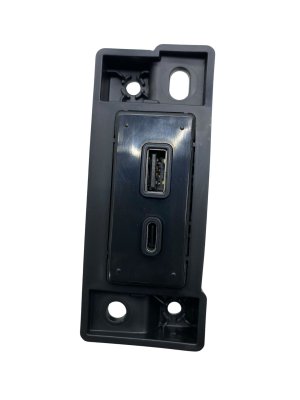
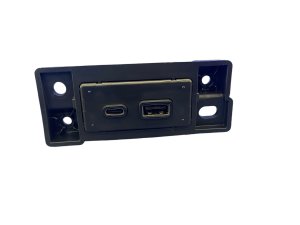
- Match the Part Number: While many GM USB ports look identical, they can have different internal circuitry. The safest approach is to match the part number exactly. The most common part number is 13519224, which supersedes older numbers like 13509942, 13510854, and 23496501. The part number is printed on a sticker on the side of the module housing.
- Physical Inspection: Before buying, carefully inspect the port. Look inside the USB slots with a flashlight. The internal contact pins should be straight and clean. Avoid any units with bent pins, corrosion, or a greenish-blue residue that indicates liquid damage.
- Check the Housing and Clips: Ensure the plastic housing isn't cracked or broken. Most importantly, check that the plastic retaining clips on the sides are intact. These clips hold the port securely in the dash or console, and if they are broken, the port will be loose and may push back into the dash 🎬 See this replacement walkthrough for Chevy Silverado models when you try to plug in a cable.
- Why Used OEM is a Good Choice: A genuine used GM part guarantees the correct data protocols for Apple CarPlay and Android Auto to function flawlessly. Cheap, unverified electronics can often lead to the same connectivity issues you're trying to fix.
Replacement Difficulty: 1/5 (Very Easy)
Replacing this USB port is one of the easiest repairs you can perform on these vehicles. It requires no special knowledge and only one simple tool.
- Estimated Time: 5-10 minutes.
- Tools Needed: Plastic trim removal tool (a flathead screwdriver wrapped in tape can work, but may scratch the console).
- Is DIY Feasible?: Yes, absolutely. This is a perfect job for a first-time DIYer.
Basic Replacement Steps
- Using a plastic trim removal tool, gently pry around the edges of the USB port module. It is held in by clips and will pop out.
- Carefully pull the module out of the dashboard or console. There will be two or three wire connectors plugged into the back.
- Depress the small tab on each connector and pull them straight out. Be careful not to let the wires fall back into the dash.
- Plug the connectors into your new USB port module. They are keyed and will only fit in the correct socket. 🎬 Watch: Step-by-step USB jack replacement for GMC Yukon
- Push the new module into the opening until the retaining clips click securely into place.
- Test the port with your phone and cable to confirm that charging and CarPlay/Android Auto are working correctly.
Cost Comparison: New vs. Used USB Ports
Replacing this part yourself with a used OEM unit can save you a significant amount of money compared to a dealership repair.
| Part Type | Estimated Cost |
|---|---|
| New OEM (Dealer) | $95 - $145 |
| New Aftermarket | Not commonly available |
| Used OEM (Recycled) | $40 - $80 |
| Shop Labor Cost | $75 - $150 |
Frequently Asked Questions (FAQ)
Why does my phone charge but Apple CarPlay / Android Auto won't connect?
This is a classic symptom of a failing port. A standard USB connection has separate pins for power and for data. The delicate data pins often wear out or break before the more robust power pins, leading to a situation where the port can still charge a device but can no longer transfer the data needed for CarPlay or Android Auto to function.
Do I need to have the new USB port programmed by the dealer?
No. The USB port is a simple plug-and-play module. It does not require any programming or special calibration after installation.
Is it better to buy a new OEM part or a used one?
For a simple, high-wear part like this, a quality used OEM part offers the best value. It provides the same guaranteed compatibility as a new OEM part for a fraction of the price. Since reliable aftermarket electronic replacements are not readily available, a used OEM part is a much safer bet than an unverified clone from an online marketplace.
Could my problem just be a software update?
It's possible. GM has issued software updates to fix bugs related to phone connectivity. However, if the problem happens when you wiggle the cable, it is almost certainly a physical hardware failure in the port itself. If the connection is stable but buggy, you may want to ask a dealer to check for any available infotainment software updates before replacing the port.
Helpful Videos
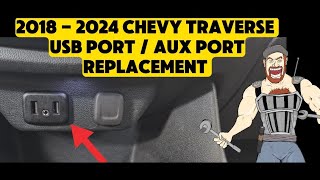
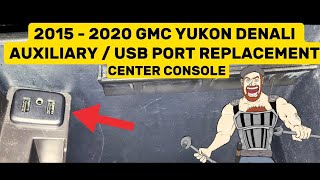
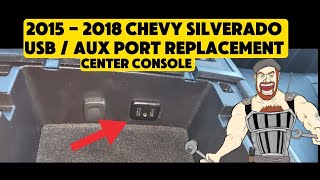
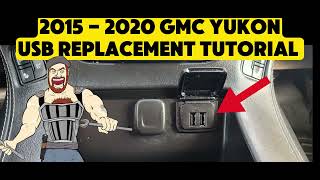
Technical Specifications
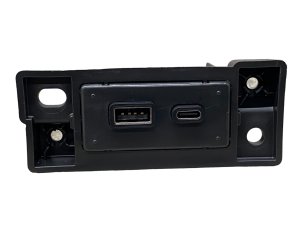
OEM Part Numbers: 13519224 13509942 13510854 23496501
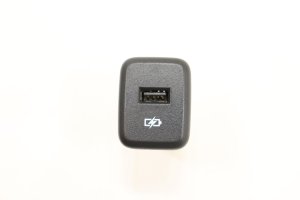
Dual USB-A receptacle. Provides both 5V power for charging and a data link to the infotainment module for Apple CarPlay, Android Auto, and media playback.
We Have This Part in Stock


The information in this article is provided for general reference and educational purposes only. Vehicle specifications, procedures, and part compatibility can vary by production date, trim level, and region. Always consult your vehicle's factory service manual and verify part numbers before purchasing or performing repairs. Safety-critical components such as airbags, seat belts, and braking systems should be installed by a qualified professional.
- Buick Enclave:
- Chevrolet Traverse:
- Cadillac Escalade:
- Cadillac Escalade ESV:
- Chevrolet Silverado 1500:
- Chevrolet Suburban:
- Chevrolet Tahoe:
- Chevrolet Trax:
- GMC Acadia:
- GMC Sierra 1500:
- GMC Yukon:
- GMC Yukon XL:
- Chevrolet Equinox:
- Cadillac XT5:
- Chevrolet Bolt EV:
- Chevrolet Camaro:
- Chevrolet Silverado 2500 HD:
- Chevrolet Silverado 3500 HD:
- Chevrolet Volt:
- GMC Sierra 2500 HD:
- GMC Sierra 3500 HD:
- Buick Regal:
- Chevrolet Colorado:
- Chevrolet Malibu:
- GMC Canyon:
- Buick Encore:
- Buick LaCrosse:
- Cadillac CT6:
- Chevrolet Corvette:
- Chevrolet Cruze:
- Chevrolet Sonic:
- 🎬 Helpful Videos
- 🛍️ Shop This Part
- Symptoms of a Failing GM USB Port
- Known Issues, TSBs, and Recalls
- Technical Service Bulletin 22-NA-238
- Technical Service Bulletin 16-NA-242
- Infotainment Software Glitches
- Step-by-Step Diagnosis
- Buying a Used USB Port: What to Check
- Replacement Difficulty: 1/5 (Very Easy)
- Basic Replacement Steps
- Cost Comparison: New vs. Used USB Ports
- Frequently Asked Questions (FAQ)
- 🎟️ Get 5% Off