

Tesla Model S & X Screen Failure: A Guide to MCU1, MCU2, and MCU3 (2016-2025)
This guide explains the common screen failures, generational differences, and critical programming requirements for the main display in the 2016-2025 Tesla Model S and Model X.
- There are three distinct, non-interchangeable screen generations (MCU1, MCU2, MCU3) for 2016-2025 Model S/X. You must identify yours before buying a part.
- MCU1 units (approx. 2016-early 2018) are subject to a critical recall for eMMC memory failure that causes a blank screen. Do not buy a used MCU1.
- A replacement screen/MCU is NOT plug-and-play. It must be programmed to your car's VIN by Tesla or an independent shop with Tesla's "Toolbox 3" software.
- For any screen glitch, your first step should always be a system reboot (holding down both scroll wheels).
Identify Your Vehicle's MCU Version

Before diagnosing a problem or buying a replacement, you must know which Media Control Unit (MCU) your Model S or Model X has. The three versions are not interchangeable. You can identify your MCU by the vehicle's manufacturing date or by checking the software information directly on the touchscreen.
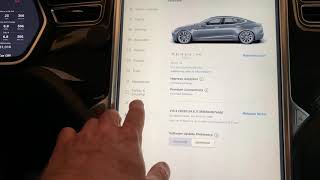
To check on your screen, navigate to Software > Additional Vehicle Information. The processor listed will reveal your MCU version.
| MCU Version | Approx. Years | Vehicles | Processor | Screen Orientation |
|---|---|---|---|---|
| MCU1 | 2016 - Early 2018 | Model S, Model X | NVIDIA Tegra 3 | Vertical |
| MCU2 | Mid 2018 - Early 2021 | Model S, Model X | Intel Atom | Vertical |
| MCU3 ("MCU-Z") | Mid 2021 - 2025 | Model S, Model X (Refresh/Plaid) | AMD Ryzen | Horizontal |
Symptoms of a Failing Screen / MCU

Failure symptoms vary significantly depending on the MCU generation installed in your vehicle.
MCU1 (2016 - Early 2018) Common Failures
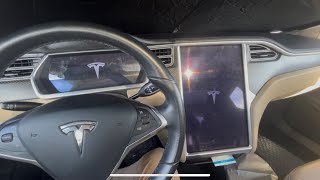
- Blank or Black Center Screen: The most common and serious symptom. The screen may fail to turn on, get stuck on the Tesla logo, or go black while driving. This is typically caused by the failure of the internal 8GB eMMC memory chip.
- Unresponsive or Lagging Touchscreen: Extremely slow response to touch inputs, map lagging, and frequent crashes or reboots.
- Loss of Functions: Inability to use the backup camera, climate controls, or turn signal indicators, which is a major safety issue. This specific failure prompted a widespread recall.
- "Yellow Border" Defect: A yellow or brownish border appears around the edges of the screen. This is a cosmetic issue caused by the breakdown of an adhesive inside the display when exposed to heat and UV light. It does not affect the screen's functionality but is visually distracting. 🎬 Watch: How Tesla fixes the yellow border issue
MCU2 (Mid 2018 - Early 2021) Common Failures
- "Yellow Border" Defect: Like MCU1, the vertical screen in MCU2-equipped cars can also develop the cosmetic yellow border from adhesive degradation.
- Occasional Sluggishness: While much faster and more reliable than MCU1, some owners report lag in the web browser or map rendering, especially when compared to the newer MCU3.
MCU3 (Mid 2021 - 2025) Common Failures
- Screen Freezing or Restarting: The screen may lag or restart, particularly during DC fast-charging preparation. This was the subject of a recall that was addressed with an over-the-air (OTA) software update to better manage the CPU temperature.
- Blank Screens: Some owners have reported the main screen and instrument cluster screen going blank intermittently. This is often a software glitch that can be resolved with a system reboot.
Troubleshooting: Try a Reboot First

Before assuming a hardware failure, perform a system reboot. This is the equivalent of restarting a computer and can solve many software-related glitches.
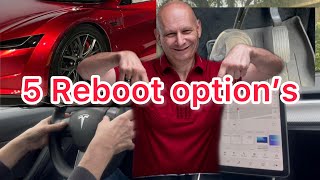
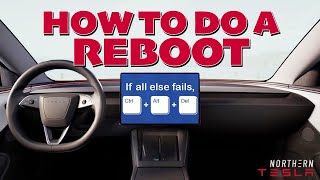
- Soft Reboot: With the vehicle in Park, press and hold both scroll wheels on the steering wheel until the center touchscreen turns black. Release the buttons and wait about 30 seconds for the system to restart. This can often be done while driving, but is not recommended as the screen will be off temporarily. 🎬 See: How to perform a soft reboot correctly
- Hard Reboot / Power Cycle: If a soft reboot doesn't work, perform a full power cycle. With the vehicle in Park, go to Vehicle > Safety > Power Off on the touchscreen. Wait for at least two to three minutes without touching anything in the car (brake pedal, doors, screen). After the wait, press the brake pedal to wake the vehicle up.
Official Recalls and Warranty Extensions

NHTSA Recall 21V-035: MCU1 eMMC Memory Failure
This is the most significant issue affecting these screens. Tesla's use of an 8GB eMMC flash memory chip in MCU1 units, combined with extensive data logging, caused the memory to wear out and fail, often in just a few years. The failure could lead to the loss of the rearview camera, defroster controls, and turn signal sounds. After an investigation by the National Highway Traffic Safety Administration (NHTSA), Tesla issued a recall for affected 2012-2018 Model S and 2016-2018 Model X vehicles. The remedy involves replacing the original 8GB eMMC memory card with a more durable 64GB unit, free of charge.
NHTSA Recall 22V-332: MCU3 CPU Overheating
Some 2021-2022 Model S and Model X vehicles (along with Model 3/Y) were recalled because the AMD Ryzen CPU could overheat during the process of preparing for or during DC fast-charging. This could cause the center display to lag or restart, potentially disabling the rearview camera display, gear selection indicators, and other functions. Tesla addressed this issue with a free over-the-air (OTA) software update that improves CPU temperature management.
Buying a Used Info-GPS-TV Screen: What to Look For

Warning: A used Media Control Unit is not a plug-and-play part. It is electronically tied to the original car's Vehicle Identification Number (VIN) and its specific set of features (e.g., Autopilot level, premium connectivity, air suspension). Installing a used MCU without proper programming will result in a non-functional unit or missing features. The car may not even start.
- Verify the Generation: The most critical step. A vertical MCU2 screen will not work in a car designed for a horizontal MCU3, and vice-versa. Ensure the part you are buying matches the generation you are replacing.
- Avoid MCU1 Completely: Do not purchase a used MCU1, even if it's cheap. It is guaranteed to have the eMMC flaw and will eventually fail. Only consider an MCU2 or MCU3.
- Physical Inspection: For vertical screens (MCU1/MCU2), inspect carefully for the tell-tale yellow border around the edges. Check for any signs of screen delamination, deep scratches, or cracks.
- Plan for Programming: The biggest challenge with a used MCU is software configuration. Before buying a used unit, you must have a plan for getting it programmed. This is not a DIY job for the average mechanic.
Installation and Programming Requirements
While the physical replacement of the screen assembly is a job a qualified technician can perform in an hour or two, the software configuration is the real hurdle.
Who Can Program a Replacement Tesla MCU?
- Tesla Service Center: This is the official and most reliable method. Tesla technicians can install a replacement unit (either new or remanufactured) and use their internal software to configure it to your car's VIN and options.
- Independent Repair Shops with Tesla Toolbox: A growing number of independent shops now subscribe to Tesla's official diagnostic software, "Toolbox 3". This software allows them to perform dealer-level diagnostics, calibrations, and software configurations. A shop with this tool can pair a used MCU to your vehicle. The process typically requires the shop to request authorization from the vehicle owner via email.
Pro Tip: Before purchasing a used MCU, contact local independent EV repair shops and ask specifically if they have a subscription to Tesla Toolbox 3 and if they have experience with MCU replacement and configuration. Do not assume any mechanic can do it.
Cost Comparison
| Item | Estimated Cost |
|---|---|
| New OEM (from Tesla) | $1,500 - $2,500 |
| MCU1 to MCU2 Upgrade (from Tesla) | $1,500 - $2,000 |
| Used OEM (MCU2) | $800 - $1,200 (part only, programming is extra) |
| Shop Labor (Physical Swap) | $150 - $300 |
| Shop Labor (Programming) | $200 - $500+ (Varies widely) |
Frequently Asked Questions (FAQ)
Can I upgrade my old, slow MCU1 to the faster MCU2?
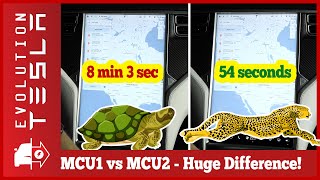
Yes. Tesla offers an official "Infotainment Upgrade" for cars with MCU1. For around $1,500-$2,000, they will replace your MCU1 hardware with MCU2, giving you a much faster, more responsive system, and access to modern features like Tesla Theater (Netflix, YouTube) and the full Tesla Arcade. This upgrade also resolves the eMMC failure permanently and is considered one of the best investments for an older Model S or X.
Will a used screen I bought online work in my car?
Not without professional programming. The MCU must be configured to your car's VIN and options profile. Simply swapping the hardware will not work. You will need to visit a Tesla Service Center or a qualified independent shop with Tesla's Toolbox software to make the part functional.
How can I fix the yellow border on my screen?
Tesla Service Centers have a special tool that uses UV light to cure the adhesive inside the screen, which can reduce or eliminate the yellow border. The process takes a few hours. Some owners have also had success with DIY methods using consumer UV nail lamps, but this carries some risk. The yellowing is purely cosmetic and does not impact the screen's operation.
My screen is completely black. Is it broken?
Not necessarily. First, try a soft reboot by holding down both steering wheel scroll buttons for 15-30 seconds. If that fails, try a full power cycle through the safety menu. If the screen still remains black, and you have an MCU1 vehicle, it is highly likely the eMMC memory has failed and the unit needs to be repaired or replaced under the recall program.
Helpful Videos


Technical Specifications
OEM Part Numbers: 1450737-00-B 1451809-00-A 1451809-00-B 1451809-00-H 1451809-80-E 1451809-80-H 1451809-S0-H 1451809-U0-H 1566010-00-D 1566010-00-F 1566028-00-A 1566028-00-B 1566028-00-C 1566028-00-D 156602800C 156601000D 1451809-80-e
MCU1 Processor: NVIDIA Tegra 3; MCU2 Processor: Intel Atom; MCU3 Processor: AMD Ryzen. Screen Size: 17 inches. Orientation: Vertical (MCU1/MCU2), Horizontal (MCU3).
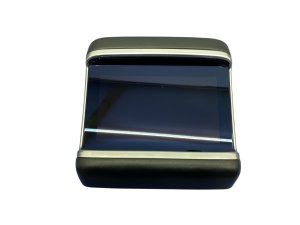
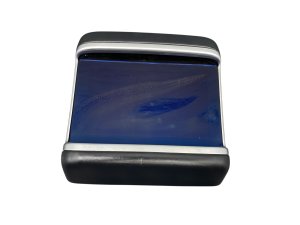
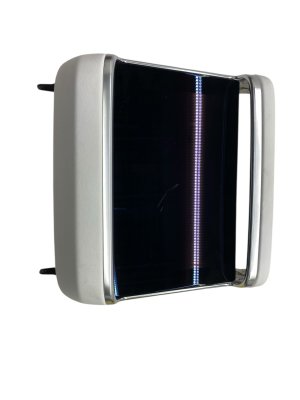
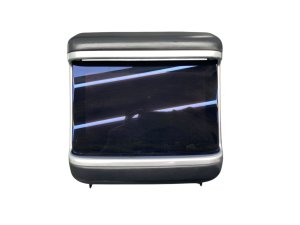
We Have This Part in Stock



The information in this article is provided for general reference and educational purposes only. Vehicle specifications, procedures, and part compatibility can vary by production date, trim level, and region. Always consult your vehicle's factory service manual and verify part numbers before purchasing or performing repairs. Safety-critical components such as airbags, seat belts, and braking systems should be installed by a qualified professional.
- Tesla X:
- Tesla S:
- 🎬 Helpful Videos
- 🛍️ Shop This Part
- Identify Your Vehicle's MCU Version
- Symptoms of a Failing Screen / MCU
- MCU1 (2016 - Early 2018) Common Failures
- MCU2 (Mid 2018 - Early 2021) Common Failures
- MCU3 (Mid 2021 - 2025) Common Failures
- Troubleshooting: Try a Reboot First
- Official Recalls and Warranty Extensions
- NHTSA Recall 21V-035: MCU1 eMMC Memory Failure
- NHTSA Recall 22V-332: MCU3 CPU Overheating
- Buying a Used Info-GPS-TV Screen: What to Look For
- Installation and Programming Requirements
- Who Can Program a Replacement Tesla MCU?
- Cost Comparison
- Frequently Asked Questions (FAQ)
- 🎟️ Get 5% Off