

Tesla Connectivity Problems? Diagnosing Your WiFi, Bluetooth, GPS & Rain Sensor Modules (2017-2025)
This guide covers the two most common antenna-related failures on the Tesla Model 3, Y, S, X, and Cybertruck: the WiFi/Bluetooth module and the GPS/Rain Sensor unit.
- Tesla uses two separate, commonly replaced modules: a WiFi/Bluetooth antenna in the passenger mirror (1585601-xx-x) and a GPS/GNSS unit in the windshield camera housing (1920001-xx-x).
- Failure of the WiFi/Bluetooth module causes 'Phone as a Key' problems and prevents software updates. Failure of the GPS module disables navigation and Autopilot/FSD.
- Before replacing hardware, always perform a touchscreen reboot and re-pair your phone, as software glitches are very common.
- Erratic auto-wiper behavior is usually a software or dirty-windshield issue with the 'Tesla Vision' system, not a broken hardware sensor on newer models.
Part 1: WiFi & Bluetooth Antenna Module (P/N 1585601-xx-x)


This small module, located inside the passenger-side mirror housing, is the communications hub for your Tesla's WiFi and Bluetooth systems. It's responsible for connecting to your home WiFi for over-the-air (OTA) software updates, streaming music from your phone, and, most importantly, enabling the 'Phone as a Key' feature.
Common Symptoms of a Failing WiFi/Bluetooth Module
- Poor or No WiFi Connectivity: The car struggles to find or maintain a connection to WiFi networks, even when close to a router. You might see error messages about firewalls or an inability to connect. This can prevent you from downloading critical software updates.
- 'Phone as a Key' Unreliable: You may experience frequent issues where the car doesn't unlock as you approach or asks for the key card when you try to drive. 🎬 Watch: Troubleshooting guide for when your car keeps asking for a key card. This is often caused by a weak or failing Bluetooth Low Energy (BLE) signal from the antenna.
- Frequent Bluetooth Audio Dropouts: Music or phone calls streamed from your phone may cut out, stutter, or disconnect intermittently.
- Inability to Pair New Bluetooth Devices: The vehicle may fail to see or pair with new phones or other Bluetooth devices.
Diagnosing the WiFi/Bluetooth Module
Before assuming the hardware is bad, perform these steps:
- Reboot the Touchscreen: Press and hold both scroll wheels on the steering wheel until the screen turns black. This resolves many software glitches.
- Toggle Bluetooth and WiFi: Turn off Bluetooth and WiFi on both your phone and the car's screen, then turn them back on.
- Re-pair Your Phone: In the car's 'Locks' menu, remove your phone as a key, then set it up again. Make sure you have your key card with you before doing this.
- Check Signal Strength: In a known good WiFi area, check the signal strength indicator on the Tesla's screen. If it's consistently low or fluctuating wildly, it points to an antenna issue.
Pro Tip: The WiFi/Bluetooth antenna is in the passenger-side mirror. If you've recently had the mirror damaged or replaced, check the antenna connection first. It's a common point of failure after a minor collision.
Part 2: GPS/GNSS Antenna & Rain Sensor Module (P/N 1920001-xx-x)


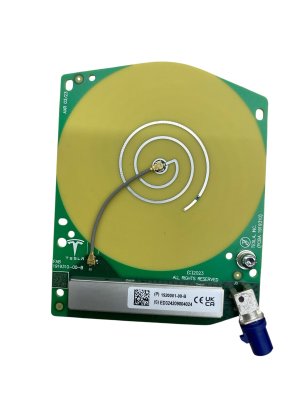
This module is mounted high on the windshield, integrated with the forward-facing camera housing. It has two primary functions: receiving satellite signals for GPS/GNSS (Global Navigation Satellite System) and, in some configurations, housing the rain sensor that controls the automatic wipers. Note that newer Teslas have moved away from a dedicated rain sensor, instead using the forward cameras to detect rain, a system often referred to as 'Tesla Vision' or 'Deep Rain'.
Common Symptoms of a Failing GPS/Rain Sensor Module
- Incorrect GPS Location: The car's location on the map is wrong, drifts, or stops updating entirely. 🎬 See this full guide on fixing Tesla GPS and navigation issues.
- 'GPS Error' Messages: The screen displays an error indicating a problem with the GPS signal.
- Autopilot or FSD Unavailable: Full Self-Driving and even basic Autopilot may be disabled, as they rely on accurate GPS data for navigation and speed limit information.
- Automatic Wipers Malfunctioning (On models with a sensor): Wipers may not activate in the rain, or they may run erratically in dry weather. Note that erratic wiper behavior is a very common complaint on Teslas, even with a functional system, and is often related to software rather than hardware failure.
Diagnosing the GPS/Rain Sensor Module
- Check Satellite Count: Enter Service Mode on your vehicle's touchscreen and find the GNSS or GPS status page. A healthy antenna should show a connection to multiple satellites. If it shows 0 satellites, there is likely a hardware fault.
- Drive in an Open Area: Test the GPS in an open space away from tall buildings, tunnels, or dense trees to rule out signal obstruction.
- Reboot and Power Cycle: A simple touchscreen reboot can sometimes restore communication. For persistent issues, a full power cycle (disconnecting the 12V battery) may be necessary, but this is a more advanced step.
Warning: Replacement of the GPS/GNSS module requires removing several pieces of trim around the rearview mirror and forward camera assembly. On some models, a camera calibration may be required after installation, which needs to be done via the service menu.
Buying a Used Tesla Antenna Module

Purchasing a used OEM antenna module is a cost-effective way to fix these issues. Since these are solid-state electronic parts without moving components, a used unit from a reputable recycler is often just as reliable as a new one.
What to Check Before Buying:
- Verify the Part Number: Match the part number exactly. For the WiFi/Bluetooth antenna, look for 1585601-xx-x. For the GPS/Rain Sensor, look for 1920001-xx-x. The final letter (e.g., -C, -D, -E) indicates a revision. A newer revision is generally compatible and often preferred.
- Inspect the Connectors: Check photos for any bent, corroded, or damaged pins on the electrical connectors. This is the most common point of failure on used parts.
- Check for Physical Damage: For the WiFi/Bluetooth antenna, ensure the plastic housing isn't cracked. For the GPS module, check for any cracks or damage to the circuit board or housing.
- Source Vehicle Information: If possible, buy from a seller who provides the VIN and mileage of the donor car. Lower mileage is always better, but these components do not have a typical wear-out mileage.
Cost Comparison
| Part | New OEM | Used OEM | Shop Labor |
|---|---|---|---|
| WiFi/Bluetooth Antenna (1585601-xx-x) | $75 - $125 | $20 - $50 | $100 - $200 |
| GPS/GNSS Module (1920001-xx-x) | $150 - $250 | $35 - $350 | $150 - $300 |
Frequently Asked Questions (FAQ)
Can I drive my Tesla with a bad WiFi or GPS antenna?
Yes, but with limitations. A bad WiFi antenna prevents software updates but doesn't stop you from driving. A bad GPS antenna will disable Autopilot/FSD and navigation, and your cruise control may be locked to the last known speed limit. If your 'Phone as a Key' fails, you will need to use your key card to enter and start the car.
Do I need to program a replacement antenna?
Generally, no. These antennas are typically plug-and-play. However, after replacing the GPS/GNSS module, it is recommended to perform a Driver Assistance System (DAS) reset or camera calibration through the service menu to ensure Autopilot functions correctly.
Why are my automatic wipers so bad? Is my rain sensor broken?
Probably not. Since 2018, Tesla has used its forward cameras instead of a dedicated rain sensor. The performance of this 'vision-based' system is highly dependent on software and the cleanliness of your windshield in front of the cameras. Erratic behavior is a widespread complaint and is more likely a software issue than a hardware failure.
🎬 Watch: How Tesla's vision-based auto wipers differ from traditional sensors.Where are all the antennas on a Tesla?
Teslas have many antennas. The main ones discussed here are the WiFi/Bluetooth antenna in the passenger mirror and the GPS antenna in the windshield camera housing. There are also cellular antennas in both mirrors, key fob antennas in the bumpers and B-pillars, and an FM radio antenna amplifier, among others.
Helpful Videos


Technical Specifications
OEM Part Numbers: 1585601-00-C 1585601-00-D 1585601-00-E 1920001-00-B
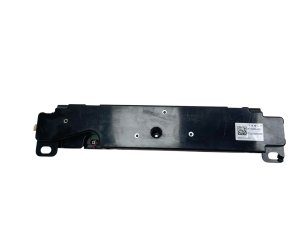
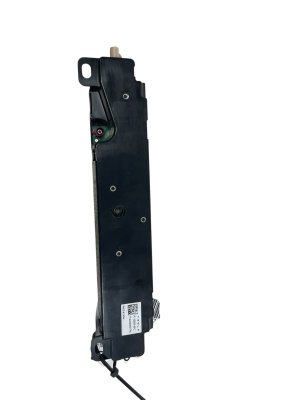
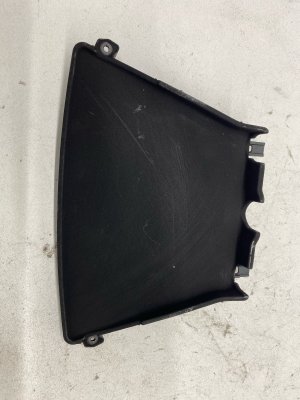
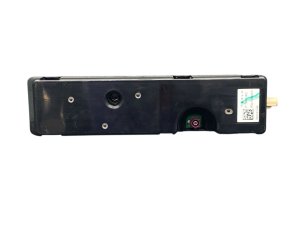
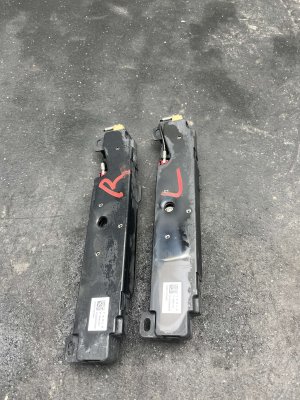
WiFi/Bluetooth Antenna (P/N 1585601-xx-x): Located in passenger side mirror. Handles 2.4 GHz / 5 GHz WiFi and Bluetooth/BLE. | GPS/GNSS & Rain Sensor Module (P/N 1920001-xx-x): Located on the upper windshield near the forward cameras. Provides location data and may control auto-wipers on older models.
We Have This Part in Stock

The information in this article is provided for general reference and educational purposes only. Vehicle specifications, procedures, and part compatibility can vary by production date, trim level, and region. Always consult your vehicle's factory service manual and verify part numbers before purchasing or performing repairs. Safety-critical components such as airbags, seat belts, and braking systems should be installed by a qualified professional.
- Tesla Model 3:
- Tesla Model Y:
- Tesla Cybertruck:
- Tesla Model S:
- Tesla Model X:
- 🎬 Helpful Videos
- 🛍️ Shop This Part
- Part 1: WiFi & Bluetooth Antenna Module (P/N 1585601-xx-x)
- Common Symptoms of a Failing WiFi/Bluetooth Module
- Diagnosing the WiFi/Bluetooth Module
- Part 2: GPS/GNSS Antenna & Rain Sensor Module (P/N 1920001-xx-x)
- Common Symptoms of a Failing GPS/Rain Sensor Module
- Diagnosing the GPS/Rain Sensor Module
- Buying a Used Tesla Antenna Module
- What to Check Before Buying:
- Cost Comparison
- Frequently Asked Questions (FAQ)
- 🎟️ Get 5% Off